> ## Documentation Index
> Fetch the complete documentation index at: https://docs.altrum.ai/llms.txt
> Use this file to discover all available pages before exploring further.
# Administration
> Learn how to add, edit, and manage users and their roles within AltrumAI
## Overview
AltrumAI provides robust administration tools to help Admins control access and responsibilities across the organisation.
> **Note:**\
> The **Administration screen** is only accessible and visible to users with **Admin** privileges. All the steps outlined below are intended for **Admin users only**.
## User Roles Explained
* **Admin**: Full access to platform settings and administration
* **User**: Limited access, typically given to AI System level control
## Accessing Administration
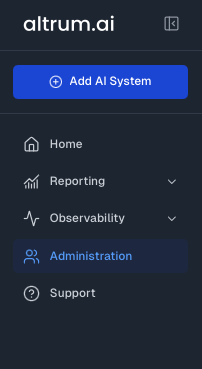
1. Navigate to the **Administration** tab from the Navigation Panel
2. You will see a list of all current users their roles and status
 ## Inviting a New User (Admin Only)
1. Click on the **Administration** tab
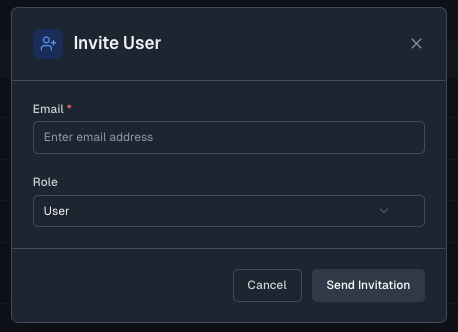
2. Click the **Invite User** button
3. Enter the user's email address
4. Select the appropriate **Role** (Admin or User)
5. Click **Send Invitation** to send the invite
## Inviting a New User (Admin Only)
1. Click on the **Administration** tab
2. Click the **Invite User** button
3. Enter the user's email address
4. Select the appropriate **Role** (Admin or User)
5. Click **Send Invitation** to send the invite
 ## Editing a User Role
1. From the **Administration** screen, locate the user whose role you want to edit.
2. At the end of the user's row, click the **Edit** option.
3. A pop-up will appear where you can change the user's role.
4. Select the new role (Admin/User).
5. Click **Save** to apply the changes.
## Editing Account Details
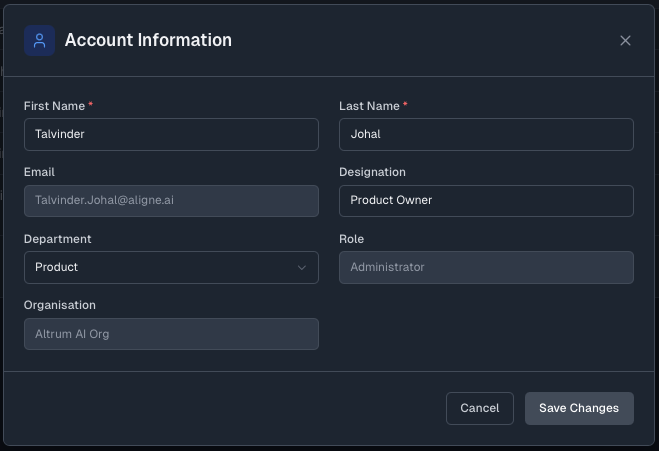
1. In the top navigation bar, click on the **user icon** (shows your initials).
2. From the dropdown options, click on **Account** to open a pop-up with your user details.
3. Directly update the necessary user information in the editable fields.
> **Note:** Fields such as **Email**, **Role**, and **Organisation** are **not editable**.
4. Click **Save Changes** to confirm and apply your changes.
## Editing a User Role
1. From the **Administration** screen, locate the user whose role you want to edit.
2. At the end of the user's row, click the **Edit** option.
3. A pop-up will appear where you can change the user's role.
4. Select the new role (Admin/User).
5. Click **Save** to apply the changes.
## Editing Account Details
1. In the top navigation bar, click on the **user icon** (shows your initials).
2. From the dropdown options, click on **Account** to open a pop-up with your user details.
3. Directly update the necessary user information in the editable fields.
> **Note:** Fields such as **Email**, **Role**, and **Organisation** are **not editable**.
4. Click **Save Changes** to confirm and apply your changes.
 ## Disabling a User
1. From the **Administration** screen, locate the user you want to disable.
2. At the end of the user's row, click the **Disable User** option.
3. A confirmation pop-up will appear asking if you wish to disable the user.
4. Click **Disable** to confirm and complete the action.
## Best Practices
* Regularly review user roles and statuses for compliance
* Only assign Admin roles to users who require elevated privileges
## Next Steps
Define compliance rules and monitor AI behaviour.
Set up and configure guardrails to enforce AI governance and compliance.
## Disabling a User
1. From the **Administration** screen, locate the user you want to disable.
2. At the end of the user's row, click the **Disable User** option.
3. A confirmation pop-up will appear asking if you wish to disable the user.
4. Click **Disable** to confirm and complete the action.
## Best Practices
* Regularly review user roles and statuses for compliance
* Only assign Admin roles to users who require elevated privileges
## Next Steps
Define compliance rules and monitor AI behaviour.
Set up and configure guardrails to enforce AI governance and compliance.